
Wplace looks simple on the surface: pick a spot, place pixels, and watch something appear. But the moment you try to recreate a real image—especially anything with gradients, small text, or subtle lighting—you realize you’re not just making art. You’re running a tiny production pipeline: simplifying detail, enforcing palette discipline, and keeping the final piece readable for strangers who will only glance at it for a second.
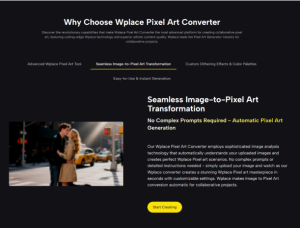
That’s why I keep coming back to the Wplace Pixel Art Converter. In my own use, it works best when you treat it as a blueprint generator rather than a “creative shortcut.” It helps convert a normal image into a constrained, buildable version that’s far easier to execute on a shared pixel canvas.
The Hidden Cost of “Just Pixelate It”
If you’ve ever used a generic pixelation filter, you’ve probably seen the same pattern:
It looks fine in a preview
Then you try to reproduce it on Wplace and it falls apart.
Why? Because Wplace punishes ambiguity
Ambiguity shows up as:
- edges that blur into the background
- colors that are almost the same but not quite
- gradients that turn into banded stripes
- textures that become random noise
In other words, the “pixel look” is not the same thing as “Wplace-ready.”
What “Wplace-Ready” Actually Means
A Wplace-ready design isn’t judged only by how accurate it is. It’s judged by how well it survives real constraints:
Readability at distance
If it isn’t recognizable while scrolling, it won’t feel worth the work.
Reproducibility
If a teammate can’t follow it without interpretation, coordination becomes messy fast.
Effort predictability
If you can’t estimate block count and dominant colors, you can’t realistically scope the build.
How the Converter Fits Into a Wplace Workflow
I tend to use the converter at the moment where enthusiasm is highest and the risk of wasted time is also highest: the very start.
Step 1: Use conversion to “stress test” the idea
Instead of committing, I generate a quick version and ask:
- Does the subject still read clearly?
- Did key features survive palette reduction?
- Are edges clean enough to trace?
If the answer is no, I don’t “push through.” I adjust the input: crop tighter, simplify background, raise contrast, or pick a different image.
Step 2: Use pixel size to decide the build’s footprint
Pixel size determines whether you’re building something modest or something that becomes a multi-day project. In my tests, the best results came from choosing the pixel size based on where it will live and *how quickly it needs to be finished*, not based on what looks most detailed on my own screen.
Step 3: Use palette and dithering to define the “style contract”
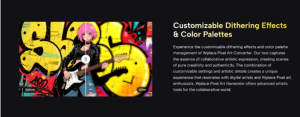
Palette discipline is the difference between a clean icon and a muddy approximation. Dithering can help gradients, but it can also create “busy” pixels that are hard to place consistently.
I use a simple contract:
- Crisp shapes get crisp edges (low dithering).
- Soft shading gets controlled smoothing (moderate dithering).
- If dithering makes the design harder to read, it’s too much.
Step 4: Use stats to plan collaboration
Even if you build solo, statistics change your decision-making. A block estimate and a color breakdown tell you whether you should:
- simplify now
- split tasks later
- reserve a larger area
- choose a higher-contrast version
The Most Useful Thing I Noticed: It Encourages Better Inputs
I expected the tool to “improve” my images. Instead, it trained me to bring better source material.
Images that convert well
- high-contrast logos
- simple characters
- bold typography (large)
- clean portraits with uncluttered backgrounds
Images that usually need prep
- busy scenes with textured backgrounds
- photos with subtle lighting and many mid-tones
- small text or thin line art
- highly compressed screenshots
This isn’t a weakness of the tool; it’s a reality of palette limits and pixel grids. The converter just reveals it quickly.
Comparison Table: Building for Wplace vs. Building for Aesthetic Alone
| Decision Area | If You Optimize for “Nice Preview” | If You Optimize for “Wplace Build” | What the Converter Helps With |
| Pixel size | Smaller = more detail | Balanced = readable + feasible | Fast experimentation |
| Colors | Preserve nuance | Preserve contrast and identity | Palette reduction and mapping |
| Dithering | More = smoother gradients | Moderate = smooth but readable | Controlled tradeoff |
| Edges | Soft is acceptable | Edges must be intentional | Clear pixel boundaries |
| Planning | “I’ll figure it out” | Block count and color strategy | Stats and breakdowns |
| Collaboration | Everyone interprets | Everyone follows one reference | Shared blueprint output |
A Practical Method: Build-First Iteration
Here’s the loop I’ve found most reliable:
Round 1: Coarse draft
Generate quickly with a larger pixel size. Don’t chase realism—chase recognizability.
Round 2: Clarify identity
Adjust palette and reduce ambiguity. Make sure outlines, eyes, logos, or typography still carry the subject.
Round 3: Add controlled nuance
Only after the design reads well do I allow more detail, and only if the block count remains realistic.
Common fixes I apply
If text becomes broken
Increase pixel size or remove dithering. Thin strokes are fragile in limited palettes.
If faces look noisy
Lower dithering and simplify shadows. Sometimes cropping the face larger is a better fix than tweaking settings.
If gradients look harsh
Increase dithering slightly, but stop when the surface begins to look speckled.
Limitations That Make the Recommendation More Credible
No conversion tool is “one click perfection,” and in my own use I’ve seen:
- Some images require multiple runs to feel right.
- Highly detailed photos can lose meaning when colors compress.
- Dithering can improve gradients while making placement harder.
- The best results still depend on choosing the right input and framing.
I don’t see these as dealbreakers. I see them as part of the craft: Wplace is a constrained canvas, and conversion is the negotiation with those constraints.
Closing: Wplace Rewards Clarity More Than Complexity
The biggest shift for me was realizing that a Wplace build doesn’t need to preserve everything—only what makes it recognizable. The Wplace Pixel Art Converter supports that mindset by turning a normal image into a simplified, palette-aware plan you can execute without constant second-guessing
If you treat the output as a blueprint—something to validate, iterate, and then build—you end up with designs that are not only visually satisfying, but also realistic to finish on a shared canvas.