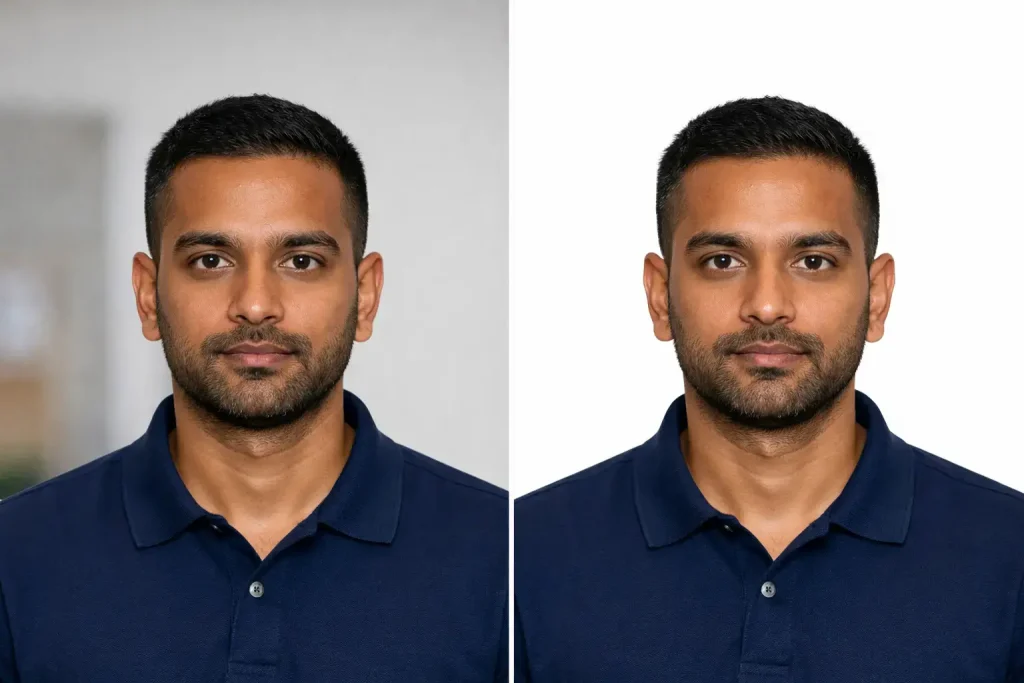
A passport photo looks simple until the clerk hands it back. The wall behind you is too dark, a shadow falls near your ear, or the color looks cream instead of white. Many people think they need Photoshop to fix this, but you do not. A modern AI background remover can clean the backdrop in minutes, right in your browser. This guide shows you how to remove background for a passport photo, how to set a white background for passport photo needs, and how to crop it to the right size. You will also learn the official rules, because some countries do not accept edited photos. Let us get started.
Key Takeaways
- Check the rules of the office that will receive your photo before you edit anything.
- The US State Department does not accept photos changed with software, apps, filters, or AI. For a US passport, retake the photo instead of editing it.
- For school IDs, work badges, online forms, and offices that allow edits, a browser tool is faster than Photoshop.
- A good original photo means fewer fixes. Use even light and a plain wall.
- After editing, check the size, head position, and file format one more time.
What Makes a Good Passport Photo Background?
Passport offices want your face to be easy to see. That is why they ask for a plain backdrop. For US passports, the State Department asks for a plain white or off-white background with no shadows, texture, lines, or objects.. Many other countries ask for a plain, light backdrop too, though the exact color can differ.
Here are the problems that cause most background trouble:
- A patterned or colored wall
- A shadow from your head or shoulders
- Uneven light, so one side of the wall looks gray
- A cream or beige wall that looks white to your eyes but not to a scanner
- Furniture, doors, or people showing behind you
Each one can be fixed by retaking the photo. In some cases, a background tool can fix it too. Which option is right for you depends on the rules, so let us look at those first.
Check the Rules Before You Edit Anything
This is the step most guides skip, and it can save you weeks.
The US State Department says you should not change your photo using computer software, phone apps, or filters, and that it checks photos to see if they were digitally altered. A news report on the same warning says a cluttered background should be fixed by retaking the image, not by erasing it digitally.
So the rule is clear for US passport and visa photos. Use a white sheet, stand a few feet in front of it, and take a new photo.
Other offices have their own rules. Some allow light cleanup, some do not, and some do not say much at all. The table below gives a simple way to decide.
| Where is the photo going? | What to do |
| US passport or US visa application | Do not edit the background. Retake the photo against a white or off-white wall. |
| Passport or ID office in another country | Read that office’s photo guide first. Edit only if it clearly allows it. |
| School, college, or work ID | Often fine to edit. Check the form for size and color. |
| Online profile, resume, or exam portal | Usually fine. Match the size and background color they ask for. |
If you are unsure, send a short email to the issuing office. A two-line answer is faster than a rejected application.
Why You Do Not Need Photoshop
Photoshop is a strong editor, but it asks for time and practice. You have to select your hair edge by edge, fix the halo around your shoulders, and then fill in a new color. For one small photo, that is a lot of work.
Online AI tools make this much shorter. They find the person in the photo, cut away the backdrop, and let you place a solid color behind you. You do not install anything. A phone or laptop with a browser is enough.
This is also why many people search for ways to remove background for passport photo files at home. They want a clean result without paying a photographer or learning a heavy program. If your photo is going somewhere that allows edits, this is the quickest path.
Step-by-Step: How to Remove Background for a Passport Photo
You can use a free browser tool such as CapCut’s remove background for passport photo page. It is built for turning a home portrait into a cleaner ID image with a plain backdrop. The steps below work with most tools of this type.
- Take a clear photo. Face the camera straight on. Keep your head level and your face fully in view. Ask someone else to take it, since selfies bend the face.
- Upload the photo. Open the tool and add your image from your phone or computer.
- Let the AI remove the background. The tool finds your outline and clears the wall behind you.
- Check the edges. Zoom in on your hair, ears, collar, and shoulders. These are the places where bad cutouts show up. Fix any rough spots with the touch-up option.
- Add a solid color. Choose white or the color your office asks for. Compare the result against a flat color so the cutout looks natural, not pasted on.
- Crop to the right size. Many offices use a square frame, and the US size is 2 x 2 inches (51 x 51 mm). Other countries use different sizes, so confirm yours. You can crop passport photo with white background right after the cleanup.
- Save in the correct format. Check the file type, file size, and whether the office wants a print or a digital copy.
One honest point: the tool’s own page says no tool can guarantee that an office will accept the photo. It helps with one common problem, which is an uneven or distracting backdrop. The final decision always belongs to the office that receives it.
Tips for a Clean Cutout
Small habits make the cutout look better:
- Wear a color that stands out. A white shirt on a white background makes the edge hard to see.
- Keep your hair neat. Loose strands are the hardest part for any tool to cut.
- Avoid glare on glasses. If your office allows glasses at all, glare can break the outline. Many offices, including the US, ask you to take them off.
- Use a high-quality original. A sharp photo gives the AI clearer edges to follow. Blurry images give rough borders.
- Zoom in before saving. Check at 200 percent. A cutout that looks fine small can look ragged when enlarged.
Take a Better Photo First
The best edit is the one you do not need. A few minutes of setup can remove most problems:
- Face a window so the light falls on your face, not behind you or to one side.
- Stand a few feet from a plain wall so your body does not cast a shadow on it.
- Hang a white bedsheet if your wall has color or texture. The State Department itself suggests this for US photos.
- Look straight at the camera with a neutral face.
- Take several shots and pick the sharpest one.
With this setup, even a basic tool will give you a clean result.
Photoshop vs Online Background Remover
| Feature | Photoshop | Online background remover |
| Learning time | Hours or more | A few minutes |
| Cost | Paid software | Many tools offer free use, so check current terms |
| Device | Computer with install | Phone or browser |
| Best for | Detailed professional edits | Quick, one-photo jobs |
| Edge accuracy | High with skill | Good with AI, needs a zoom check |
For a single passport-style image, the online option wins on speed. Photoshop makes sense only if you edit photos often.
Real-World Examples
These examples come from public guidance and news reports. They show what happens when edited photos meet strict rules.
Example 1: The State Department’s rejected sample. The State Department’s photo page shows a sample marked unacceptable where the background was digitally cropped. The lesson is simple. If an office checks for edits, a clean look is not enough. The photo must be unedited.
Example 2: The US Mission in Nigeria warning. The US Mission in Nigeria told visa applicants that photos changed with AI or editing software will be rejected and can delay an application, as reported by Legit.ng. The lesson here is to read the official page first and plan time for a retake.
Sample scenario (an illustration, not a real client): A student needs a photo for a university ID card. She took a selfie in her bedroom, and the shelf behind her was visible. The university form only asked for a plain light background and a square crop. She used a browser tool, removed the shelf, added white, cropped the image, and uploaded it the same day. The key point is that she checked the form first, so she knew edits were fine.
Common Mistakes to Avoid
- Editing before reading the rules. This is the biggest and most costly mistake.
- Choosing light gray or cream. Off-white has a narrow meaning. Pure white is the safer choice when edits are allowed.
- Cutting into the head or hair. An outline that cuts into your head or neck can fail a check.
- Skipping the size check. A perfect background does not help if the head size is wrong.
- Applying beauty filters. Skin smoothing and other effects are often banned on official photos.
- Saving at low quality. Heavy compression leaves blurry edges and can break upload rules.
Frequently Asked Questions
Can I remove background for passport photo images taken at home?
Yes, you can edit a home photo with a browser tool. Whether the office accepts it depends on its rules. The US State Department does not accept software-edited photos, so for a US passport you should retake the photo against a white wall.
What color should a passport photo background be?
Most offices ask for plain white, off-white, or another light solid color. The US asks for white or off-white. Always check the guide for the country that issues your document.
Do I need Photoshop to change a passport photo background?
No. Browser-based tools can remove a backdrop and add a solid color in a few clicks. Photoshop is only needed if you want advanced control.
Will an online tool make my photo officially accepted?
No tool can promise that. A tool can clean up an uneven backdrop, but the receiving office decides if the photo meets its rules for size, head position, and format.
What size is a US passport photo?
It is 2 x 2 inches, or 51 x 51 mm. Other countries use other sizes, so confirm yours before you crop.
What is the safest way to avoid rejection?
Take a good photo from the start. Use even light, a plain white wall or sheet, and a neutral face. Then compare it with the official guide before you submit.
Final Thoughts
The quickest way to remove background for a passport photo without Photoshop is a browser-based AI tool. It takes a few minutes, works on a phone, and gives you a clean, solid backdrop. But speed is only half the story. Read your issuing office’s photo rules first. For US passports and visas, the safest path is a fresh photo against a white wall. For school IDs, work badges, and offices that allow edits, a quick cleanup can save you time and money.